Welcome to my page :)
Chapter 2
TEXT
When creating a web page, you add tags (known as markup) to the contents of the page. These tags provide extra meaning and allow browsers to show users the appropriate structure for the page.
In this chapter we focus on how to add markup to the text that appears on your pages. You will learn about:
-
Structural markup: the elements that you can use to describe both headings and paragraphs.
-
Semantic markup: which provides extra information; such as where emphasis is placed in a sentence that something you have written is a quotation (and who said it), the meaning of acronyms and so on.
HEADINGS
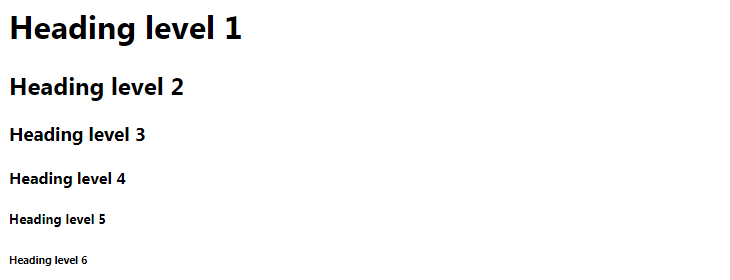
HTML has six “levels” of headings:
< h1 > is used for main headings.
< h2 > is used for subheadings.
If there are further sections under the subheadings then the < h3 > element is used, and so on…
Browsers display the contents of headings at different sizes. The contents of an < h1 > element is the largest, and the contents of an < h6 > element is the smallest. The exact size at which each browser shows the headings can vary slightly. Users can also adjust the size of text in their browser. You will see how to control the size of text, its color, and the fonts used when we come to look at CSS.
PARAGRAPHS

< P >
To create a paragraph, surround the words that make up the paragraph with an opening < p > tag and closing < /p > tag.
By default, a browser will show each paragraph on a new line with some space between it and any subsequent paragraphs.
BOLD & ITALIC
- < b > By enclosing words in the tags < b > and < /b > we can make characters appear bold.
The < b > element also represents a section of text that would be presented in a visually different way (for example key words in a paragraph ) although the use of the < b > element does not imply any additional meaning.
- < i > By enclosing words in the tags < i > and < /i > we can make characters appear italic.
The < i > element also represents a section of text that would be said in a different way from surrounding content — such as technical terms, names of ships, foreign words, thoughts, or other terms that would usually be italicized.
Superscript & Subscrip

-
< sup > The < sup > element is used to contain characters that should be superscript such as the suffixes of dates or mathematical concepts like raising a number to a power .
-
< sub > The < sub > element is used to contain characters that should be subscript. It is commonly used with foot notes or chemical formulas.
Semantic Markup
There are some text elements that are not intended to affect the structure of your web pages, but they do add extra information to the pages — they are known as semantic markup.
In the rest of the chapter you will meet some more elements that will help you when you are adding text to web pages. For example, you are going to meet the < em > element that allows you to indicate where emphasis should be placed on selected words and the < blockquote > element which indicates that a block of text is a quotation.
Browsers often display the contents of these elements in a different way. For example, the content of the < em > element is shown in italics, and a < blockquote > is usually indented. But you should not use them to change the way that your text looks; their purpose is to describe the content of your web pages more accurately.
The reason for using these elements is that other programs, such as screen readers or search engines, can use this extra information. For example, the voice of a screen reader may add emphasis to the words inside the < em > element, or a search engine might register that your page features a quote if you use the < blockquote > element.
Strong & Emphasis
- < strong > The use of the < strong > element indicates that its content has strong importance. For example, the words contained in this element might be said with strong emphasis.
By default, browsers will show the contents of a < strong > element in bold.
- < em > The < em > element indicates emphasis that subtly changes the meaning of a sentence.
By default browsers will show the contents of an < em > element in italic.
Summary TEXT
-
HTML elements are used to describe the structure of the page ( e.g. headings, subheadings, paragraphs ).
-
They also provide semantic information ( e.g. where emphasis should be placed, the definition of any acronyms used, when given text is a quotation ).
Chapter 10
TEXT INTRODUCING CSS
In this section, we will look at how to make your web pages more attractive, controlling the design of them using CSS.
CSS allows you to create rules that specify how the content of an element should appear. For example, you can specify that the background of the page is cream, all paragraphs should appear in gray using the Arial typeface, or that all level one headings should be in a blue, italic, Times typeface.
Once you have learned how to write a CSS rule, learning CSS mostly involves learning the different properties you can use. So this chapter will:
- Introduce you to how CSS works
- Teach you how to write CSS rules
- Show you how CSS rules apply to HTML pages
The remaining chapters in this section will look at all of the various CSS properties you can use.
Understanding CSS: Thinking Inside the Box
The key to understanding how CSS works is to imagine that there is an invisible box around every HTML element.
On this page, you can see a basic HTML page.

You can see the same HTML page, but I have added outlines to each of the elements so that you can see how CSS will treat each element as if it lives inside its own box.
BLOCK & INLINE ELEMENTS
-
You may remember from pages 185-186 that in there is a difference between block level and inline elements and how browsers display them.
-
Block level elements look like they start on a new line.
Examples include the < h1 > - < h6 >, < p > and < div > elements.
- Inline elements flow within the text and do not start on a new line.
Examples include < b >, < i >, < img >, < em > and < span >.
CSS allows you to create rules that control the way that each individual box (and the contents of that box) is presented.

In this example, block level elements are shown with red borders, and inline elements have green borders.
The < body > element creates the first box, then the < h1 >, < h2 >, < p >, < i >, and < a > elements each create their own boxes within it.
Using CSS, you could add a border around any of the boxes, specify its width and height, or add a background color. You could also control text inside a box — for example, its color, size, and the typeface used.
Example Styles
- BOXES
Width and height Borders (color, width, and style) Background color and images Position in the browser window.
- TEXT
Typeface, Size, Color, Italics, bold, uppercase lowercase, small-caps.
- SPECIFIC
There are also specific ways in which you can style certain elements such as lists, tables, and forms.
CSS Associates Style rules with HTML elements
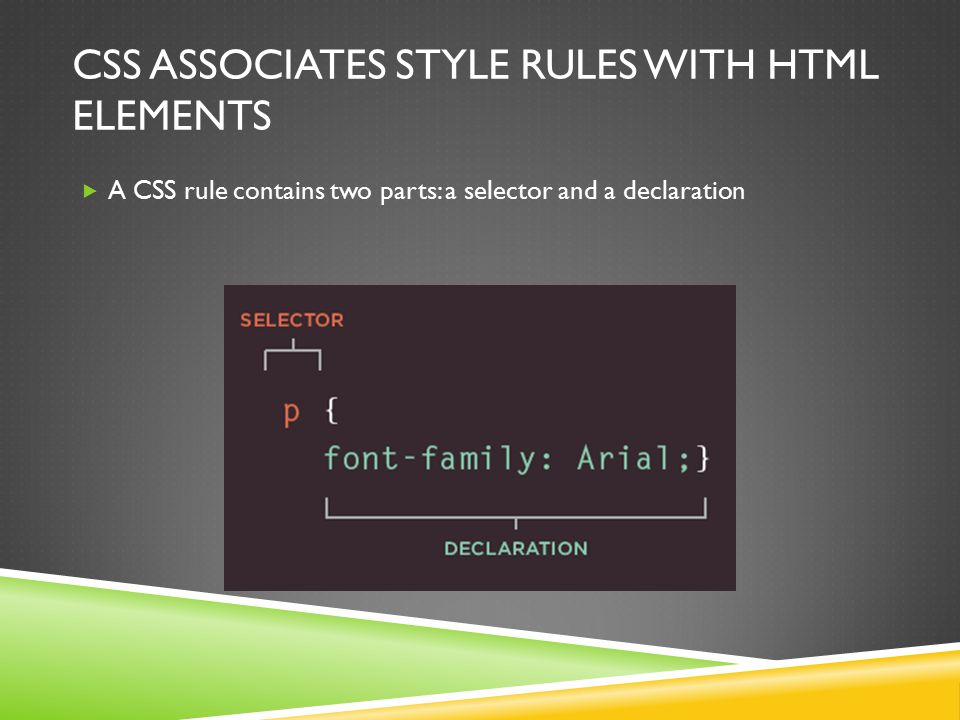
CSS works by associating rules with HTML elements. These rules govern how the content of specified elements should be displayed. A CSS rule contains two parts: a selector and a declaration.
This rule indicates that all < p > elements should be shown in the Arial typeface.
Selectors indicate which element the rule applies to. The same rule can apply to more than one element if you separate the element names with commas.
Declarations indicate how the elements referred to in the selector should be styled. Declarations are split into two parts (a property and a value), and are separated by a colon.
CSS Properties Affect How Elements Are Displayed

CSS declarations sit inside curly brackets and each is made up of two parts: a property and a value, separated by a colon. You can specify several properties in one declaration, each separated by a semi-colon.
This rule indicates that all < h1 >, < h2 > and < h3 > elements should be shown in the Arial typeface, in a yellow color.
Properties indicate the aspects of the element you want to change. For example, color, font, width, height and border.
Values specify the settings you want to use for the chosen properties. For example, if you want to specify a color property then the value is the color you want the text in these elements to be.
Example
INTRODUCING CSS
Here you can see a simple web page that is styled using CSS.
This example uses two documents: the HTML file (example.html) and a separate CSS file (example.css). The fifth line of HTML uses the < link > element to indicate where the CSS file is located.
On the next page, you will see how CSS rules can also be placed in your HTML pages and we will discuss when you might want to do this.
< !DOCTYPE html > < html > < head > < title >Introducing CSS< /title > < link href=”css/example.css” type=”text/css” rel=”stylesheet” / > < /head > < body > < h 1>From Garden to Plate< /h1 > < p >A < i >potager< /i > is a French term for an ornamental vegetable or kitchen garden … < /p > < h2 >What to Plant< /h2 > < p >Plants are chosen as much for their functionality as for their color and form … < /p > < /body > < /html >
body { font-family: Arial, Verdana, sans-serif; } h1, h2 { color: #ee3e80; } p { color: #665544; }
To learn more about Chapter 10 - Introducing CSS Visit
Basic JavaScript Instructions
What Is The Javascript ?
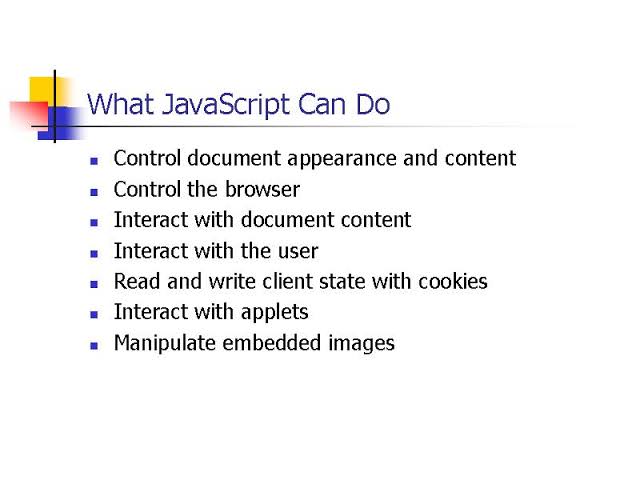
JavaScript is the Programming Language for the Web. JavaScript can update and change both HTML and CSS. JavaScript can calculate, manipulate and validate data.
JavaScript (“JS” for short) is a full-fledged dynamic programming language that can add interactivity to a website. It was invented by Brendan Eich (co-founder of the Mozilla project, the Mozilla Foundation, and the Mozilla Corporation).
Decisions and Loops
WHAT IS Decisions IN JAVASCRIPT ?
Decision Making statements are if, else, elseif and switch these statements are used in making decisions.
-
if..else statements
if..else statements is used where you want to execute a set of code when a condition is true and another if the condition is not true.
-
switch statements
switch statements is used where you want to execute one block of code out of many.

WHY WE USE LOOP IN JAVASCRIPT ?
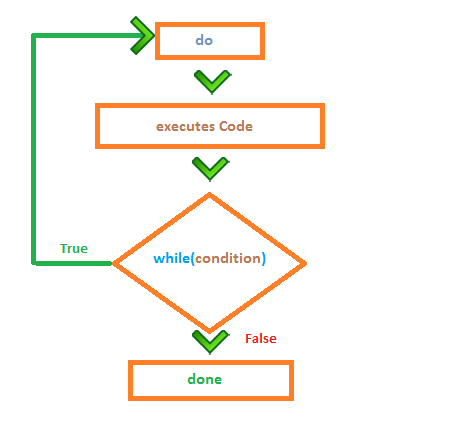
The JavaScript loops are used to iterate the piece of code using for, while, do while or for-in loops. It makes the code compact. It is mostly used in array.