Welcome to my page :)
Chapter 3
LINKS
Links are the defining feature of the web because they allow you to move from one web page to another — enabling the very idea of browsing or surfing.
You will commonly come across the following types of links:
-
Links from one website to another.
-
Links from one page to another on the same website.
-
Links from one part of a web page to another part of the same page.
-
Links that open in a new browser window.
-
Links that start up your email program and address a new email to someone.
Writing Links
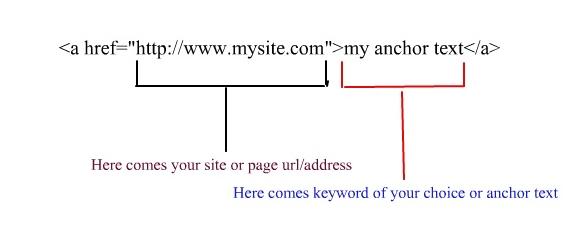
Links are created using the < a > element. Users can click on anything between the opening < a > tag and the closing < /a > tag. You specify which page you want to link to using the href attribute.
-
The text between the opening < a > tag and closing < /a > tag is known as link text. Where possible, your link text should explain where visitors will be taken if they click on it (rather than just saying “click here”).
-
Many people navigate websites by scanning the text for links. Clear link text can help visitors find what they want. This will give them a more positive impression of your site and may encourage them to visit it for longer. (It also helps people using screen reader software.)
-
To write good link text, you can think of words people might use when searching for the page that you are linking to. (For example, rather than write “places to stay” you could use something more specific such as “hotels in New York.”)
Linking to Other Sites
< a >
-
Links are created using the < a > element which has an attribute called href. The value of the href attribute is the page that you want people to go to when they click on the link.
-
Users can click on anything that appears between the opening < a > tag and the closing < /a > tag and will be taken to the page specified in the href attribute.
-
When you link to a different website, the value of the href attribute will be the full web address for the site, which is known as an absolute URL.
Browsers show links in blue with an underline by default.
Absolute URLs
-
URL stands for Uniform Resource Locator. Every web page has its own URL. This is the web address that you would type into a browser if you wanted to visit that specific page.
-
An absolute URL starts with the domain name for that site, and can be followed by the path to a specific page. If no page is specified, the site will display the homepage.
Linking to Other Pages on the Same Site
< a >
-
When you are linking to other pages within the same site, you do not need to specify the domain name in the URL. You can use a shorthand known as a relative URL.
-
If all the pages of the site are in the same folder, then the value of the href attribute is just the name of the file.
-
If you have different pages of a site in different folders, then you can use a slightly more complex syntax to indicate where the page is in relation to the current page.
Relative URLs
-
When linking to other pages within the same site, you can use relative URLs. These are like a shorthand version of absolute URLs because you do not need to specify the domain name.
-
Relative URLs help when building a site on your computer because you can create links between pages without having to set up your domain name or hosting.
Email Links
mailto:
To create a link that starts up the user’s email program and addresses an email to a specified email address, you use the < a > element. However, this time the value of the href attribute starts with mailto: and is followed by the email address you want the email to be sent to.
Opening Links in a New Window
target
-
If you want a link to open in a new window, you can use the target attribute on the opening < a > tag. The value of this attribute should be _blank.
-
One of the most common reasons a web page author might want a link to be opened in a new window is if it points to another website. In such cases, they hope the user will return to the window containing their site after finishing looking at the other one.
Summary
LINKS
-
Links are created using the < a > element.
-
The < a > element uses the href attribute to indicate the page you are linking to.
-
If you are linking to a page within your own site, it is best to use relative links rather than qualified URLs.
-
You can create links to open email programs with an email address in the “to” field.
-
You can use the id attribute to target elements within a page that can be linked to.
Chapter 15
Layout
In this chapter we are going to look at how to control where each element sits on a page and how to create attractive page layouts.
This involves learning about how designing for a screen can be different to designing for other mediums (such as print).
In this chapter we will:
-
Explore different ways to position elements using normal flow, relative positioning, absolute positioning and floats.
-
Discover how various devices have different screen sizes and resolution, and how this affects the design process.
-
Learn the difference between fixed width and liquid layouts, and how they are created.
-
Find out how designers use grids to make their page designs look more professional.
Key Concepts in Positioning Elements
Building Blocks
CSS treats each HTML element as if it is in its own box. This box will either be a block-level box or an inline box.
- Block-level boxes start on a new line and act as the main building blocks of any layout, while inline boxes flow between surrounding text. You can control how much space each box takes up by setting the width of the boxes (and sometimes the height, too). To separate boxes, you can use borders, margins, padding, and background colors.
Block-level elements
-
start on a new line
-
Examples include:
- < h1 > < p > < ul > < li >
-
Inline elements
-
flow in between surrounding text
-
Examples include:
- < img > < b > < i >
-
Screen Sizes
Different visitors to your site will have different sized screens that show different amounts of information, so your design needs to be able to work on a range of different sized screens.
-
When designing for print, you always know the size of the piece of paper that your design will be printed on. However, when it comes to designing for the web, you are faced with the unique challenge that different users will have different sized screens.
-
Since computers have been sold to the public, the size of screens has been steadily increasing. This means that some people viewing your site might have 13 inch monitors while others may have 27+ inch monitors.
-
The size of a user’s screen affects how big they can open their windows and how much of the page they will see. There are also an increasing number of handheld devices (mobile phones and tablets) that have smaller screens.
Screen Resolution
Resolution refers to the number of dots a screen shows per inch. Some devices have a higher resolution than desktop computers and most operating systems allow users to adjust the resolution of their screens.
-
Most computers will allow owners to adjust the resolution of the display or the number of pixels that are shown on the screen. For example, you can see the options to change the screen size from 720 x 480 pixels up to 1280 x 800 pixels.
-
It is interesting to note that the higher the resolution, the smaller the text appears. Many mobile devices have screens that are higher resolution than their desktop counterparts.
Page Sizes
Because screen sizes and display resolutions vary so much, web designers often try to create pages of around 960-1000 pixels wide (since most users will be able to see designs this wide on their screens).
Chapter 3
Functions, Methods, and Objects
WHAT IS A FUNCTION?
Functions let you group a series of statements together to perform a specific task. If different parts of a script repeat the same task, you can reuse the function (rather than repeating the same set of statements).
To learn more about function type please read chapter 3 in :-
Article:-
6 Reasons for Pair Programming
- How does pair programming work?
While there are many different styles, pair programming commonly involves two roles: the Driver and the Navigator. The Driver is the programmer who is typing and the only one whose hands are on the keyboard. Handling the “mechanics” of coding, the Driver manages the text editor, switching files, version control, and—of course writing—code. The Navigator uses their words to guide the Driver but does not provide any direct input to the computer. The Navigator thinks about the big picture, what comes next, how an algorithm might be converted in to code, while scanning for typos or bugs. The Navigator might also utilize their computer as a second screen to look up solutions and documentation, but should not be writing any code.
- Why pair program?
While learning to code, developers likely study several programming languages. Similar to a foreign language class, there are four fundamental skills that help anyone learn a new language: Listening: hearing and interpreting the vocabulary Speaking: using the correct words to communicate an idea Reading: understanding what written language intends to convey Writing: producing from scratch a meaningful
Pair programming touches on all four skills: developers explain out loud what the code should do, listen to others’ guidance, read code that others have written, and write code themselves.
1 . Greater efficiency
It is a common misconception that pair programming takes a lot longer and is less efficient. In reality, when two people focus on the same code base, it is easier to catch mistakes in the making. Research indicates that pair programing takes slightly longer, but produces higher-quality code that doesn’t require later effort in troubleshooting and debugging (let alone exposing users to a broken product).
2 . Engaged collaboration
When two programmers focus on the same code, the experience is more engaging and both programmers are more focused than if they were working alone. It is harder to procrastinate or get off track when someone else is relying on you to complete the work. Popping open your Facebook timeline is just that less enticing when someone else is looking at your screen.
Another important aspect of learning to program is knowing when to ask for help. We advise our students to spend no more than fifteen minutes stuck on a problem before asking a teaching assistant or instructor for help. When developers pair program, they rely more on each other and can often find a solution together without needing to ask for additional help. Ultimately, this boosts overall confidence.
3 . Learning from fellow students
Everyone has a different approach to problem solving; working with a teammate can expose developers to techniques they otherwise would not have thought of. If one developer has a unique approach to a specific problem, pair programming exposes the other developer to a new solution.
4 . Social skills
Pair programming is great for improving social skills. When working with someone who has a different coding style, communication is key. This can become more difficult when two programmers have different personalities. Pair programming not only improves programming skills, but can also help programmers develop their interpersonal skills. When just grabbing the keyboard and taking over isn’t an option, getting good at finding the right words is a skill unto itself.
This has long-term career impacts. As much as employers want strong programmers, they know it’s essential to hire people who can work well with others.
5 . Job interview readiness
A common step in many interview processes involves pair programming between a current employee and an applicant, either in person or through a shared screen. They will carry out exercises together, such as code challenges, building a project or feature, or debugging an existing code base. By doing so, companies can get a better feel for how an applicant will fit into the team and their collaboration style.
For most roles, the ability to work with and learn from others and stellar communication skills are as (or more!) important to a company than specific technical skills. Pair programming strengthens all of those skills.
6 . Work environment readiness
Many companies that utilize pair programing expect to train fresh hires from CS-degree programs on how they operate to actually deliver a product. Code Fellows graduates who are already familiar with how pairing works can hit the ground running at a new job, with one less hurdle to overcome.
If you like to read the “Article” please visit:- Link
© 2021.