Welcome To My Page :)

What is a text editor?
A text editor is a piece of software that you download and install on your computer, or you access online through your web browser, that allows you to write and manage text, especially the text that you write to build a web site. The text editor has to be one of the most important tools you can use as an aspiring web developer.
What features should you look for in a text editor? I would say some of the most important features are:
- Code completion;
- Syntax highlighting;
- A nice variety of themes (to reduce eye strain and fatigue); and
- The ability to choose from a healthy selection of extensions available when you need them.
You might find some other features that are must-have’s, but I think these features are a good start.
A great feature of any text editing software is code completion. Code completion allows you to start typing, and the code completion feature will display possible suggestions based on what you originally typed. This saves you time by providing a choice, rather than allowing you to finish typing and possibly encounter typos.
Also, some code completion includes the closing of tags when you open them, or the closing of brackets when you open them, or the closing of quotation marks when you open them, thus making sure you’re always writing your code.
Another nice feature is being able to write your HTML and CSS more efficiently. There is a kind of shorthand language called Emmet that can help. Emmet will speed up your code writing faster than you can imagine. Some text editors come with Emmet built right in, or Emmet can be added by the means of an extension.
Another feature you should definitely look into is called syntax highlighting. Syntax highlighting is a feature that takes the text you type, and makes it more noticeable by colorizing the text. Attributes are a different color than elements. And elements are a different color than copy. This makes it so much easier when you’re looking for an error and you can’t find it. As well as making your text easier to read.
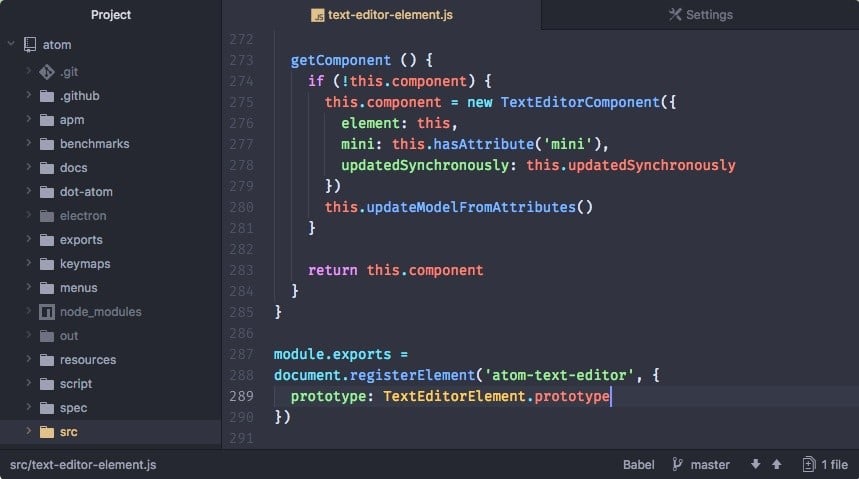
The next feature that you should look for in a text editor is a nice series of themes. These themes will allow you to change the color of the background of your text editor, the series of colors in your text, and sometimes themes will affect other aspects of your text editing software as well. Usually, web developers use a dark background and brightly colored text. This combination seems to be easier on the eyes—but there are other themes to choose from as well. Since you’ll beusing your text editor most of the time, it’s good to find a theme that might reduce eye strain and fatigue.
As you become more familiar with coding, you may want to add more features to your text editor. You’ll want to accomplish more with minimal effort. You want a text editor that can grow with you as your needs grow. This comes in the form of extensions. Extensions are like plugins for your text editor, that allow you to have superpowers that you wouldn’t have otherwise. A text editor that has a great selection of extension will ensure that you have the ability to add functionality as you need it.
Using The Software That Already Comes With Your Computer
Now that we’ve talked about some of the features one might be interested in if they were interested in a text editor. Let’s talk about some of your options—beginning with the software that comes on your computer.
Every computer will come with its own text editor. On Mac computers, the text editor that comes with your computer is called, “Text Edit.” On Windows computers, the text editor that comes with your computer is called, “Notepad.”
And on Linux computers, each distribution will have its own text editor already installed but which one might depend on the flavor of your particular distribution. These text editors will go by different names. One distro might have “Gedit,” and others might have other titles. Check you list of applications to see which text editor comes with your distribution of Linux.
Third-Party Options
Ok, what about third-party options? Let’s talk about software like: Notepad++, Text Wrangler, BB Edit, Visual Studio Code, Atom, Brackets, and Sublime Text. These text editors can all be downloaded and installed to your computer from their respective websites. Each of these titles do have some if not all of the features that we talked about earlier, and most of this software is absolutely free! They are widely used in web development today.

NotePad++
NotePad++ is a free text editor for Windows Computers only. NotePad++ has been around for many years and many web developers swear by NotePad++. It has syntax highlighting and code completion, as well as word completion and function completion. It has a zoom in an out feature, it’s own online community, and its own chat room for questions that may arise. It even has its own searchable wiki page for more assistance.

TextWrangler
TextWrangler is for Mac computers only, and you used to be able to download it from the Mac App Store. In doing my research for this blog post, I’ve come to find out that TextWrangler has been retired. I know, I’m a little late to the party with this news, but TextWrangler was retired in 2017. This was one of the go-to text editors for Mac Computers.
But all hope is not lost, the folks that make TextWrangler, Bare Bones Software has incorporated TextWrangler into its more robust, big brother, BB Edit—another feature packed text editor

BB Edit
BB Edit is software that you purchase. But BB Edit comes with a 30- day free trial. After the 30 days is over, if you still want the free version, simply continue using BB Edit, and you’ll get the same features as you would have gotten in TextWrangler. If you want the full features in BB Edit, the full cost for a full license is $49.99. Find out more by clicking here: link

Visual Studio Code
Visual Studio Code is a free text editor made by the folks at Microsoft. It is available for Windows computers, Mac computers and Linux computers. VS Code has the Emmet shorthand for HTML and CSS already built-in with no additional work from you at all. VS Code has everything: syntax highlighting, themes, extensions and code completion. It seems like VS Code has a very healthy following in the web developing community.
Atom Atom is a free text editor that’s available for download for Windows computers, Mac computers and Linux computers. Atom is brought to you by the folks at GitHub . GitHub is a great service online where you can host and review code, or you can post and get help with the development of your own projects. Atom also ticks all the right boxes. It has syntax highlighting, themes, extensions, the works! Atom is definitely a software to check out and test drive for yourself.

Brackets
Brackets is a free text editor that’s available for download for Windows computers, Mac computers and Linux computers. It’s made and maintained by the good folks at Adobe—yep, the Photoshop people. Brackets only supports HTML, CSS and JavaScript, though more coding capabilities can be added through extensions. Being that Brackets only supports HTML, CSS and JavaScript, this might be a great choice to start with. But still the choice is yours.
Brackets includes all of the features one may want when using a text editor including something called “Live Preview” which updates your website once you make a change automatically. So, you can’t go wrong with Brackets.

Sublime Text
Sublime Text 3 is a premium software that can be purchased in full for $70. Otherwise you’ll use the free version. Sublime Text enjoys a history of being fast and responsive while being extensible as well. There’s no doubt that Sublime Text will tick the check boxes of what to look for in a text editor. It has syntax highlighting, it has code completion, it has themes and extensions. And will definitely get the job done no matter how advanced you get with your coding.
The Difference Between Text Editors and IDEs
A text editor kind of gives away what it does in the title—it edits text. It also manages text, and manages files. I love that name “text wrangler” because in a way that’s what really a text editor does. It wrangles your text together into something meaningful.
An IDE (Integrated Development Environment) is really a suite of different software all coming together. An IDE is a text editor, a file manager, a compiler, and a debugger all in one software package.
You can think about an IDE very much like Microsoft Outlook. If you’ve ever used Microsoft Outlook, you would have quickly noticed that it was an email client, a calendar, a task manager, a to-do list all in one software package. Similar to how an IDE is an all-in-one software package.
While you might not be ready, or have the need to use a compiler, or a debugger when you’re just starting out in web development, you’ll get to see how an IDE operates in your text editing software. When you’re ready to use an IDE, you’ll be more confident in how to use it because you’ll already had some experience with it by using your text editor.